SCHEDULE ONE-TIME EVENT
- Create Event (when scheduling a one-time event, you have two options)
- Schedule Directly From the Calendar
- Go to Calendar
- Click "New"
- Enter Show Details
- Name: Event Title
- Subtitle: Additional Details (i.e. client name for Road Show)
- Date: Event Date
- Location: Check this box if the event will be at your HOME theatre. If it is off-site, uncheck the box and enter the location.
- Start Time: Show Start Time
- Call Time: Performer Call Time
- Show Length: Duration of Performance/Event
- Notes: Any additional information you would like to share
- Click Create Event
- Schedule from "Show Template"
- Go to Manage > Show Templates
- Click "New" next to the show you want to schedule
- Enter Show Details (details added to the template will auto populate)
- Name: Event Title
- Subtitle: Additional Details (i.e. client name for Road Show)
- Date: Event Date
- Location: Check this box if the event will be at your HOME theatre. If it is off-site, uncheck the box and enter the location.
- Start Time: Show Start Time
- Call Time: Performer Call Time
- Show Length: Duration of Performance/Event
- Notes: Any additional information you would like to share
- Click Create Event
- Schedule Directly From the Calendar
- Add Additional Event Information
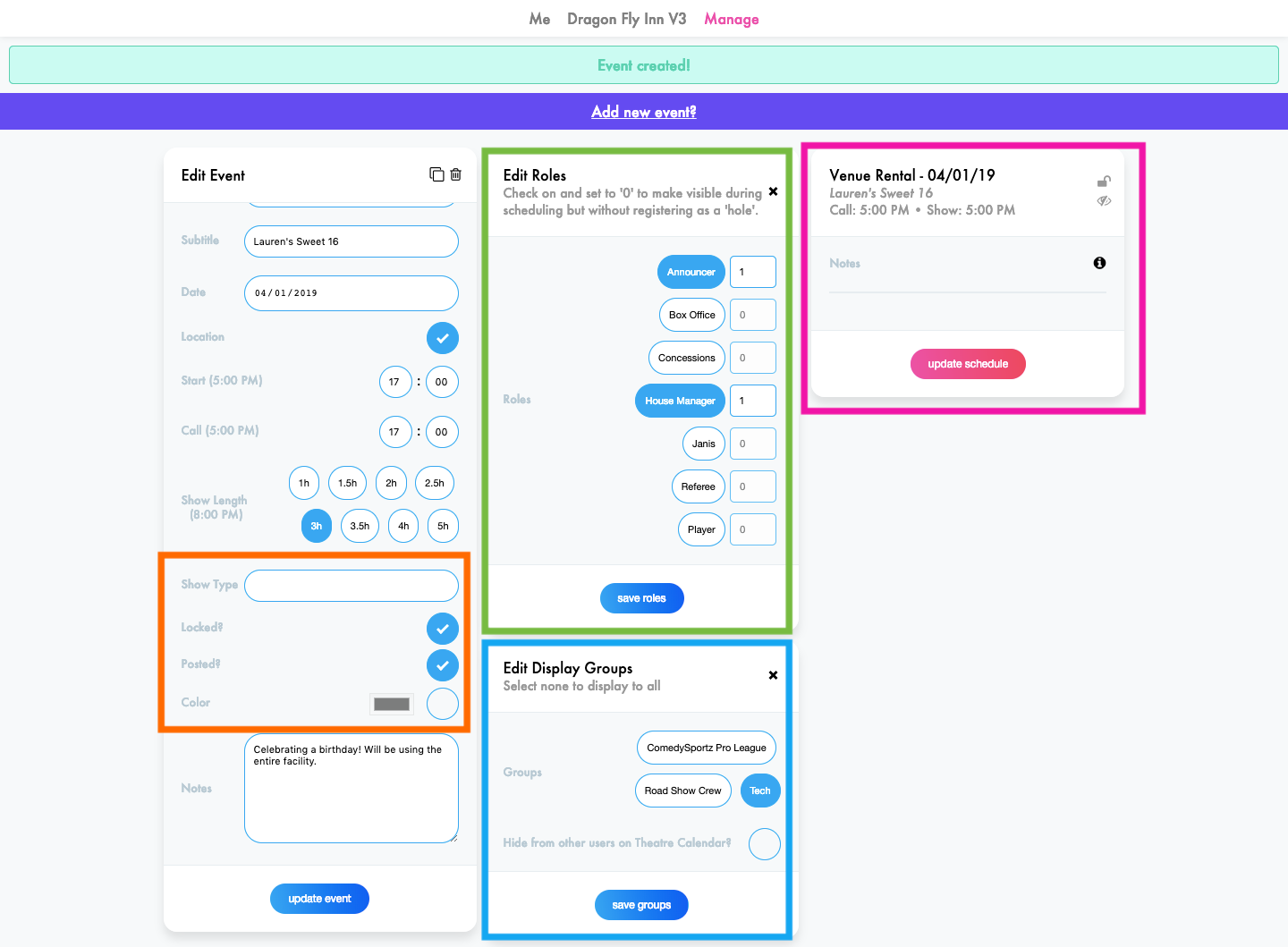
- Edit Event Module
- Show Type: You can select an existing show type from one of your templates
- Locked: Availability can no longer be submitted for this event
- Posted: The event will display on the calendar
- Color: Calendar display color
- Edit Roles Module
- Click on the Role Name to activate it for a particular event. It will turn blue once it is active.
- Select how many of each role you need for the specific show (i.e. on referee and six players).
- Click on the Role Name to activate it for a particular event. It will turn blue once it is active.
- Edit Display Groups
- If this event only applies to a specific group, choose which groups you want to be able to submit availability.
- Users who are not in the display group can still see the event, however, they cannot mark themselves available.
- If you would like to hide the event from any users not in the chosen display groups, click "Hide from other users on Theatre Calendar?"
- If this event only applies to a specific group, choose which groups you want to be able to submit availability.
- Event Schedule
- Click Update Schedule to schedule available players to the event.
- Edit Event Module
SCHEDULE RECURRING EVENTS
Before you schedule your event, make sure you've created your Show Template.
- Add a new "Scheduler" by going to Manage>Scheduler
- Click "New"
- Enter Recurring Details
- Show: Select show template from drop down
- Frequency: Weekly or Monthly Event
- Ordinals (Monthly Events Only): Which week is your show in a given month? (i.e. last Friday of the month)
- Weekdays: Which day is the show?
- Click "Create"

- Post Recurring Shows to Schedule
- Go to Manage > Scheduler
- Click "Run" Next to the Show You Want Posted to the Calendar
- Select the Month You Want Posted
- Click "Run"